

Secure your account: two-factor, PIN and passkeys
Your password is the first lock. Two-factor authentication, your app PIN and a passkey add three more, so a stolen password alone is never enough.
Before you start
- Your phone with Google Authenticator (or any authenticator app) installed
Step 1Open Security
In your profile, open Security. It shows each protection and whether it is on.
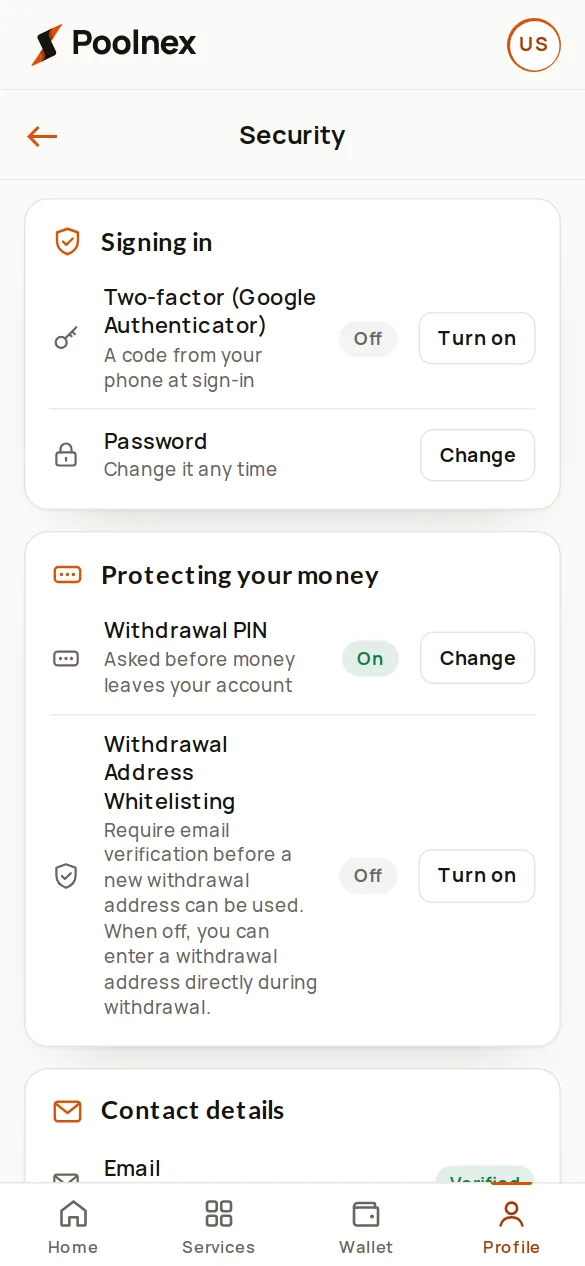
The Poolnex Security page: password, two-factor, email, phone and app PIN Step 2Turn on two-factor authentication
Choose Enable 2FA. Install Google Authenticator from the App Store or Google Play.
Scan the code shown with the app, or copy the setup key into it, then type the six-digit code the app shows and choose Enable 2FA.
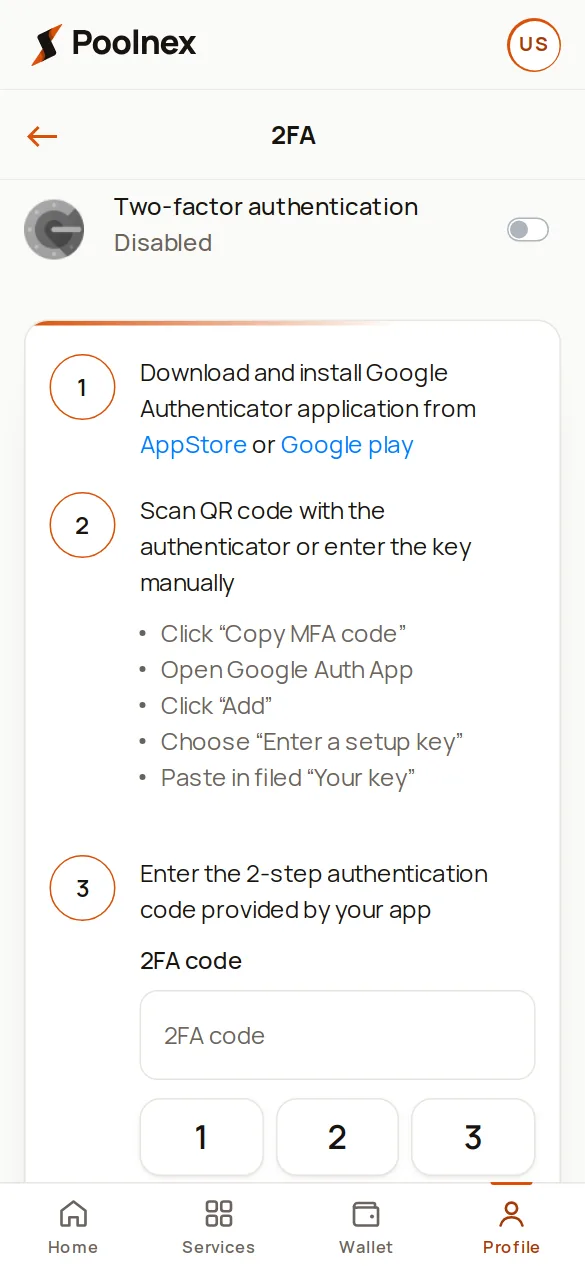
The two-factor set-up steps: install the app, add the key, enter the code Write the setup key down and keep it somewhere safe and offline. It is the only way to move your codes to a new phone.
Step 3Set your app PIN
Your PIN, 4 to 6 digits, confirms withdrawals and other important actions. Set it in Security, or when your first withdrawal asks you to.
Avoid easy ones such as 1234 or your birth year.
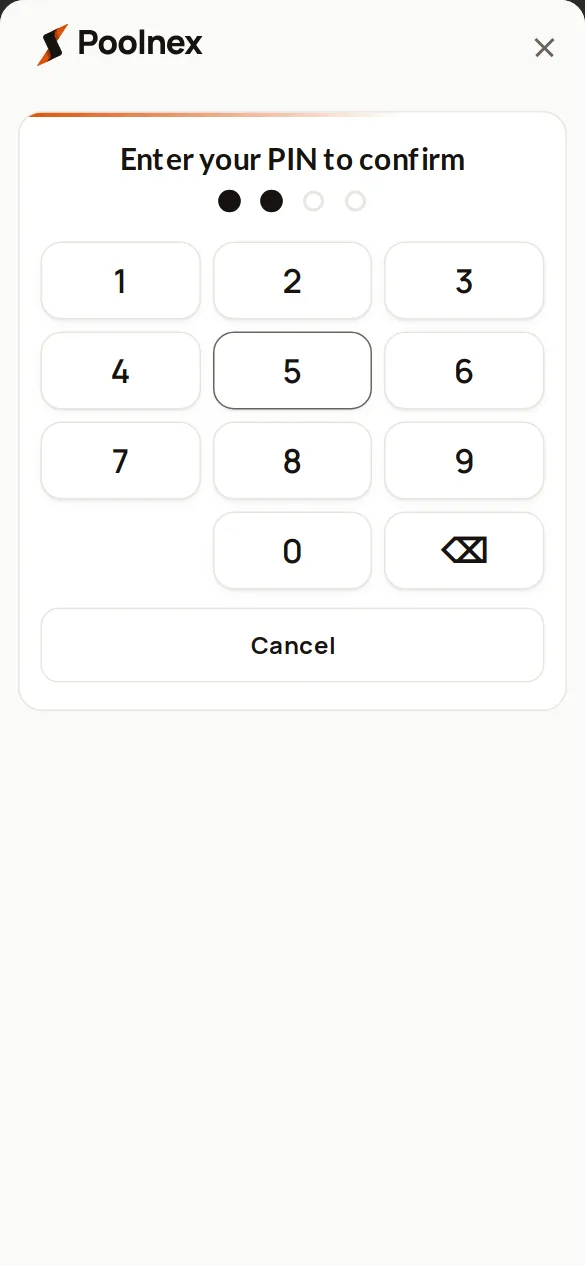
Entering the app PIN to confirm a withdrawal Step 4Add a passkey
On a phone or computer with Face ID, a fingerprint reader or Windows Hello, choose Log in with passkey / Face ID on the sign-in page and follow your device.
Next time, you sign in with your face or fingerprint. A passkey works only on poolnex.com, so it cannot be used on a fake site.


Good to know
- Never share your password, PIN or any code, even with someone who says they work for Poolnex.
- Check Account Activity in your profile now and then: it lists every sign-in.
How it works, what it costs
Account securityTwo-factor authentication, passkeys and a confirmation on every withdrawal.Ready to try it?
Open your account in minutes. Every service is ready once you are verified.